Connect and model
UDT templates
Model a pump, motor or tank once - parameters, members, nested templates, inheritance, alarms and scripts - then create and manage as many instances as you need.
A UDT template (user-defined type) describes one kind of equipment: a Pump with its speed, current, running and fault tags, its alarms and its scripts. Each instance (P-101, P-102…) gets its own folder of tags, made from the template. Change the template and every instance follows.
Open UDT Templates to see templates on the left and the selected template’s members, parameters and instances on the right.
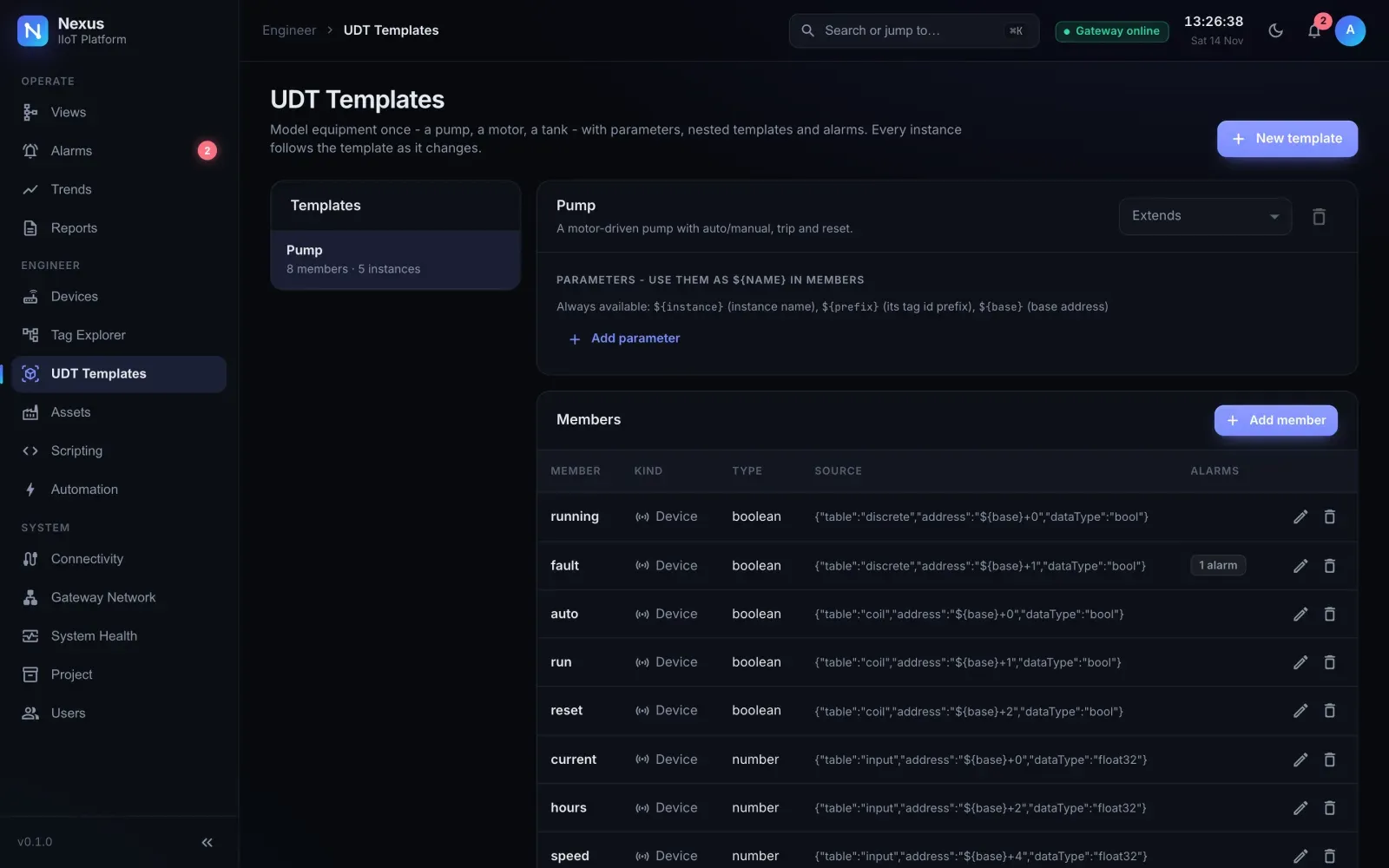
Create a template
- Choose New template and name it, for example
Pump. - Add parameter for each value that differs between instances, with a default:
base(a register offset),ratedAmps,area. - Add member for each tag an instance needs.
- Save. Then New instance to create the first pump.
Parameters
Parameters are declared on the template and used as ${name} in any text field of a member: device addresses, expressions, reference tags, units, SQL, alarm setpoints, the device itself.
Every instance also has these built-in parameters:
| Parameter | Value |
|---|---|
${instance} | The instance’s name, for example P101 |
${prefix} | The instance’s tag ID prefix, for example plant.pumps.p101 |
${base} | A base address |
Parameter types are text (the default), number, whole number or true/false. Defaults and instance values are checked when they are saved. A field that is exactly one numeric parameter, optionally + or - a number, becomes a number: "address": "${base}+2". A field that is exactly one true/false parameter becomes a boolean.
Members
| Member kind | Becomes | Typical use |
|---|---|---|
| Device | A device tag, read from the instance’s device | Speed, current, run feedback |
| Memory | A memory tag per instance, seeded once | A setpoint or a flag per pump |
| Expression | An expression tag, often over sibling members | {${prefix}.Current} > ${ratedAmps} |
| Reference | A reference tag | Pointing at a shared tag |
| Query | A query tag, with ${parameters} in its SQL | Run hours from the MES |
| Nested template | A whole instance of another template, in a subfolder | A Motor inside a Pump |
A device member can name its own device, directly (Safety PLC) or as a parameter (${drive}), so one instance can span several PLCs. Left empty, it reads from the instance’s device.
A nested template gets its own parameter values, which may use the outer template’s parameters.
Inheritance
A template can extend another and inherit its parameters and members. A member with the same name replaces the inherited one, and a parameter can get a new default. For example, VFD Pump extends Pump and adds frequency members. A template can’t extend or contain itself; that is checked when you save.
Alarms on members
A member can carry alarm templates. They become alarm rules on that member’s tag in every instance, with their notification routes and escalation policies (named per template). Setpoints can use parameters, and setpointTag: "${prefix}.HighLimit" makes a rule follow a per-instance memory tag.
These rules are managed by the instance. The Alarm rules page shows them as from a UDT template: change how they trip in the template, or override a setpoint on the instance. Their documentation (cause, consequence, corrective action) can be edited on the rule.
Scripts on members
A member can carry a tag script that every instance’s tag runs when it changes. Besides the usual value, previousValue and quality, it gets udt:
udt. | Value |
|---|---|
instance | The instance name (P101) |
prefix | The tag ID prefix, so udt.prefix + '.Starts' is another member of the same instance |
member | This member’s name |
params | The parameter values, typed as declared |
${...} inside script code is JavaScript’s own template syntax, not a parameter. An instance can switch its copy of a script off. Adding or changing template scripts needs the Manage scripts permission.
Instances
Open an instance to set its parameter values, its device, and overrides per member:
- Leave a member out.
- Change its units, scaling, scan class or history.
- Use a different address or device.
- Change alarm setpoints, or turn its alarms off.
- Turn its template script off.
Each member’s settings open beside it, overridden ones are marked, and each has a reset to the template’s value. The dialog previews every tag the instance will make before you save.
Creating many instances at once
Create several makes instances in one go:
- Numbered: a pattern such as
P-{n}from 101 to 140, with base0plus10each.{n}works in parameter values too. - From a list (CSV): paste rows of
name,base,device,<parameters>.
Every row is checked first (name in use, device, parameter types, tag IDs), then they are all created together, or none are.
Changing a template
Every change applies to all instances: of this template, of templates extending it, and of templates containing it.
- New members are created, changed ones updated (overrides are kept), and removed ones deleted with their alarm rules.
- Renaming a member keeps its tags, with their alarm rules, scripts, memory values, overrides and alarm journal, in every instance. The tags get the new ID, and their history stays readable under it.
- Leaving a member out and including it again replaces its tags with the same tag ID, so history continues.
Templates in projects and packages
Projects and tag packages carry templates (with their parents and nested templates) and instances with their parameters and overrides. Generated tags and alarm rules are recreated on import.