Integration
Projects and packages
Back up and move the whole configuration as a project file, or move one application, some symbols or some tag folders as a package - previewed before anything changes.
Nexus moves configuration between gateways as JSON files:
| File | Holds | Typical use |
|---|---|---|
| Project | The gateway’s whole configuration | Backups, staging to production, a new site from a template |
| Application package | One application: its views and the symbols they draw | Sharing an HMI between plants |
| Symbol package | Some library symbols | A symbol marketplace, a company symbol set |
| Tag package | Tag folders, with the UDTs, devices, alarms and scripts they use | Rolling a standard line out to several sites |
Every import can be previewed: the preview is the real import rolled back, so it shows exactly what would be created, updated or left unchanged.
Projects
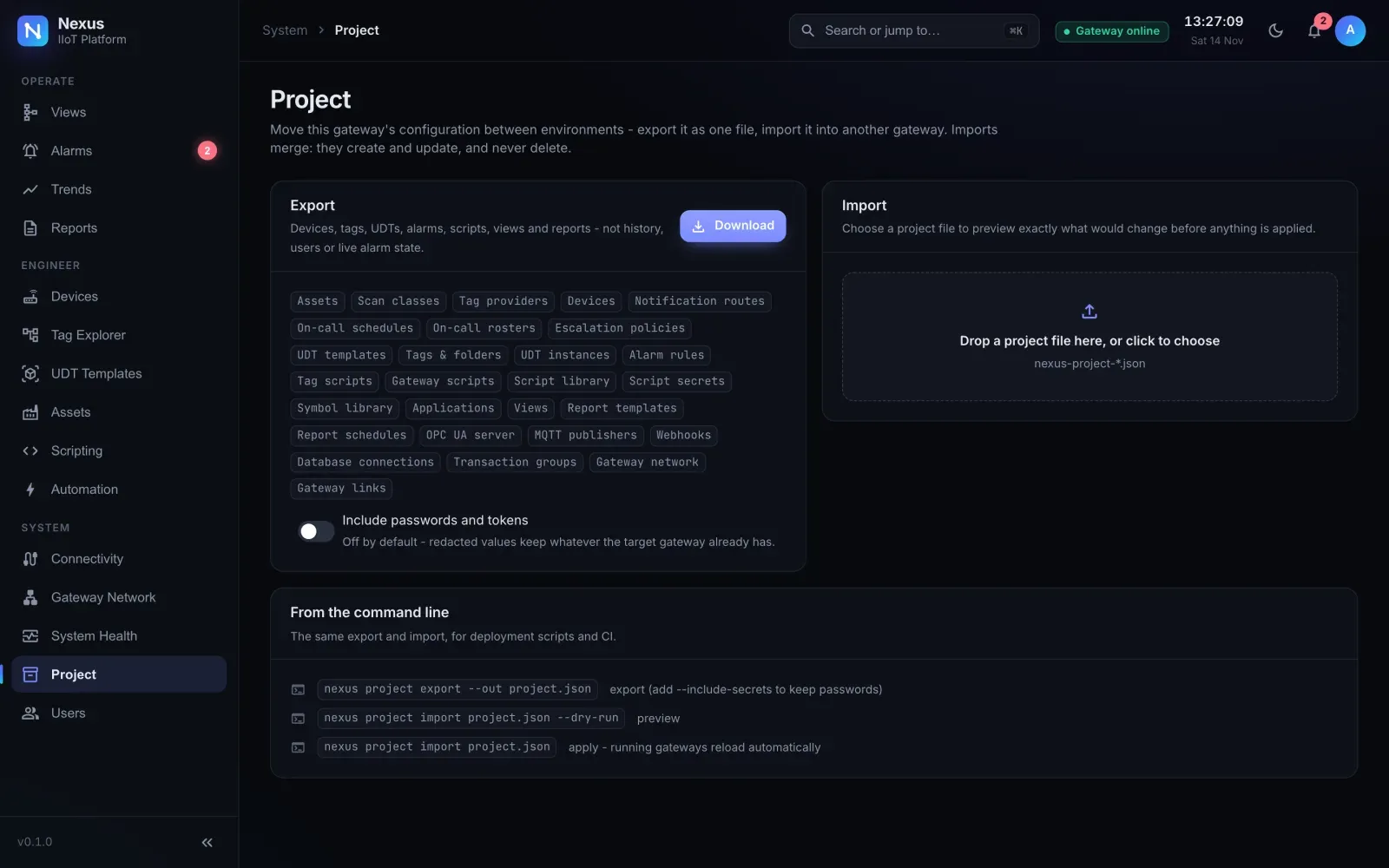
A project holds: assets, devices, tags (all types), UDT templates and instances, alarm rules, notification routes, on-call schedules, rosters and escalation policies, tag and gateway scripts, the script library, secret names, applications and their views, the symbol library, report templates and schedules, connectivity settings (OPC UA server, MQTT publishers, webhooks, SQL bridge) and gateway network settings.
It does not hold history, users, API keys, enrollment tokens, OPC UA certificates or live alarm state.
Exporting and importing
-
In the app: Project → download an export, or drop a file to preview exactly what an import would change, then apply it.
-
From the command line:
nexus project export --out project.json
nexus project import project.json --dry-run
nexus project import project.json
With Docker:
nexusctl cli project export > project.jsonandnexusctl cli project import - < project.json.
Import rules
- Merge, never delete. Everything in the file is created or updated by its natural key (device name, tag ID, path, script or view name). Things that only exist on the target are left alone.
- All or nothing. An import applies completely or not at all.
- Live. Running gateways reload right after an import, including imports made from the command line.
- Secrets are redacted by default. Passwords and tokens in device, notification, MQTT, webhook and database settings export as
__REDACTED__, and on import the target keeps its own value. Administrators can export with secrets. - Memory tag values are only set when a tag is created, so an import never overwrites setpoints operators changed.
- Code needs Manage scripts. Someone with Engineer but not Manage scripts imports everything except code, and the report says what was skipped.
- Applications land in drafts. The report says which applications to publish.
- UDT instances are recreated from their template, which regenerates their tags.
- Views that embed or link to other views are re-linked to the target’s IDs.
Project files are sorted and pretty-printed, so they compare well in version control.
Application packages
Download one application, with its views and the library symbols they draw, from the application bar under Views (the download button). On another gateway, choose Import application…:
- The preview lists the views, symbols and settings that would change, and any tags the views use that the target doesn’t have.
- Import into the application of the same name, or as a new one (a new name and address).
- The import lands in the draft: review it, then publish.
Symbol packages
In Views → Symbol library, download some or all symbols as a symbol package. Import a package file the same way; the preview shows new symbols and any that would replace existing ones of the same name. Drawings are cleaned again on import.
Tag packages
Tag packages carry tag folders and what they need to run:
- Every tag and UDT instance under the folders.
- The UDT templates they use (with parents and nested templates).
- Their devices, custom scan classes and tag providers.
- The alarm rules and tag scripts on those tags.
- Assets they belong to.
To make one, use Tag Explorer → Send tags → Download a tag package, or from the command line:
nexus tags export Plant/Line1 "[site2]/Pumps" --out line1.nexus-tags.jsonTo import, use Tag Explorer → Import tags. Choose the tag provider to import into and, optionally, a folder to put the tags under. The preview lists what would change and any tags the package’s expressions, alarms or scripts read that it doesn’t include.
Tag IDs stay the same, so a tag already on the target with the same ID is moved and updated, not copied. Device passwords are not included. Tag scripts come along only for people with Manage scripts.
Tag packages can also go straight to edge gateways over the network; see Gateway network.
Importing packages from the command line
nexus package import line1.nexus-tags.json --dry-run
nexus package import line1.nexus-tags.json
nexus package import hmi.json --as packaging-line --name "Packaging line"
--as and --name import an application package as a new application.