Getting started
Introduction
What Nexus is, the parts it is made of, and the ideas the rest of these docs build on.
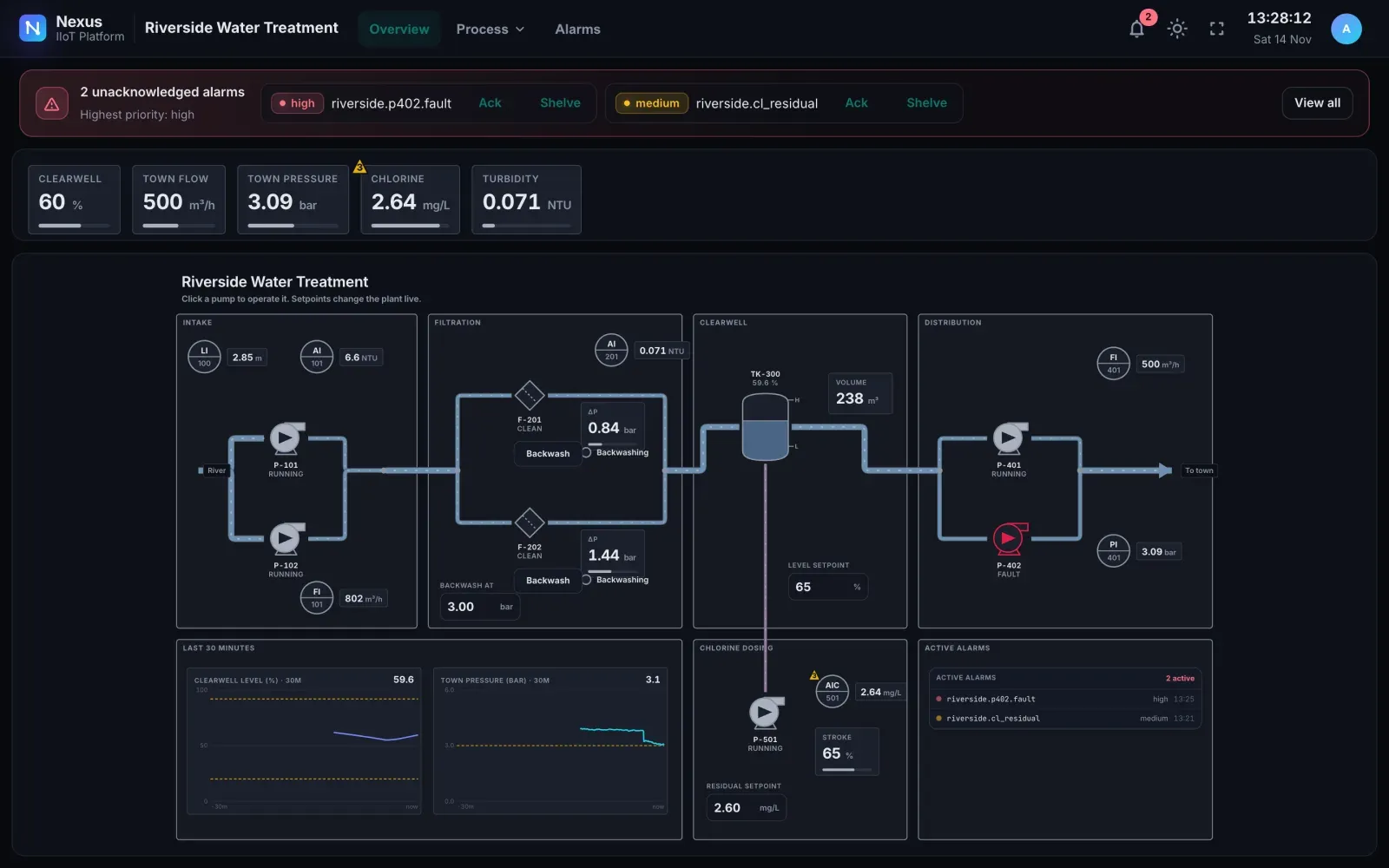
Nexus is an industrial IoT and SCADA platform. One gateway connects to your PLCs, meters and edge devices, keeps their values and history, raises alarms, and serves everything people and other systems need: operator screens, trends, reports, scripts and integrations. It all runs in a web browser, so control-room screens, laptops, tablets and phones need nothing installed.
What you can do with it
- Connect equipment. Read and write PLCs over Modbus, Siemens S7, EtherNet/IP, Omron FINS, OPC UA and MQTT Sparkplug B. A built-in simulator gives you values before any hardware is connected.
- Model the plant. Organise data as tags in folders. Model a pump, motor or tank once as a template and stamp out as many instances as you need. Arrange equipment in an ISA-95 asset hierarchy.
- Build operator screens. Draw views from a palette of process symbols, controls, charts and tables, bind them to live tags, and group them into full-screen applications with menus, popups and version control.
- Alarm and notify. Define alarm rules on any tag, then tell the right people by email, SMS or webhook. On-call rosters and escalation policies cover nights and weekends.
- Keep history and report on it. Every historized change is stored. Chart it in trends, and send PDF reports on a schedule.
- Automate. Write JavaScript gateway and tag scripts, or wire flows in the embedded Node-RED editor. The AI assistant drafts screens from your real tags.
- Integrate. Publish tags through an OPC UA server, MQTT (Sparkplug B or JSON), a REST API, webhooks and a SQL bridge. Link gateways at different sites into one network.
The parts of a Nexus system
| Part | What it does |
|---|---|
| Gateway | One process that runs the drivers, tag engine, alarms, historian, scripts, Node-RED, the web app and the APIs, all on one port. |
| PostgreSQL with TimescaleDB | Holds configuration, users, the alarm journal, the audit log and long-term history. |
| QuestDB | Holds fast, raw tag history. |
| MQTT broker (optional) | Needed for MQTT Sparkplug B devices and for publishing tags over MQTT. |
The installers set up both databases for you. See Installation.
Key ideas
These terms come up on every page.
- Device: A connection to one piece of equipment: a PLC, a meter, an OPC UA server, an MQTT edge node, or the built-in simulator. See Devices.
- Tag: A named value with a quality and a timestamp, for example
plant.t101.level. Tags can read from a device, hold a value in memory, compute an expression, mirror another tag, or run a SQL query. See Tags. - Quality: Every value is good, uncertain or bad. A device that goes offline or an address the PLC rejects makes its tags bad, and screens show that.
- UDT template: A user-defined type such as Pump: a set of member tags, parameters, alarms and scripts. Each instance (P-101, P-102…) gets its own folder of tags. See UDT templates.
- Asset: A node in the ISA-95 equipment hierarchy: enterprise, site, area, line, cell or equipment. Devices, views and tag folders can belong to an asset, and users can be limited to parts of the tree. See Assets.
- View: One screen of process graphics: symbols bound to tags, with click actions. See Views.
- Application: A set of views with navigation, a title and a colour, published to operators as a full-screen client at
/apps/<name>. See Applications. - Role: A set of permissions (view, operate, acknowledge alarms, engineer, manage scripts, administer) given to users. See Users and roles.
- Project: The gateway’s whole configuration as one JSON file, for backups and for moving work between gateways. See Projects and packages.
Who these docs are for
- Operators use applications, acknowledge alarms and look at trends. Start with Applications and Alarms.
- Engineers connect devices, model tags and build screens, alarms and reports. Start with the Quick start.
- Administrators install and secure the gateway and manage users. Start with Installation and the Security checklist.
Conventions. Menu paths are written as Section → Tab → Button, for example Alarms → Rules → New rule. The left sidebar groups sections under Operate, Engineer and System. Some sections only appear for roles that can use them.