Alarms, history and reports
Reports
Generate alarm, shift and custom PDF reports, schedule them to run on their own, and deliver them by email, to a folder or to another system.
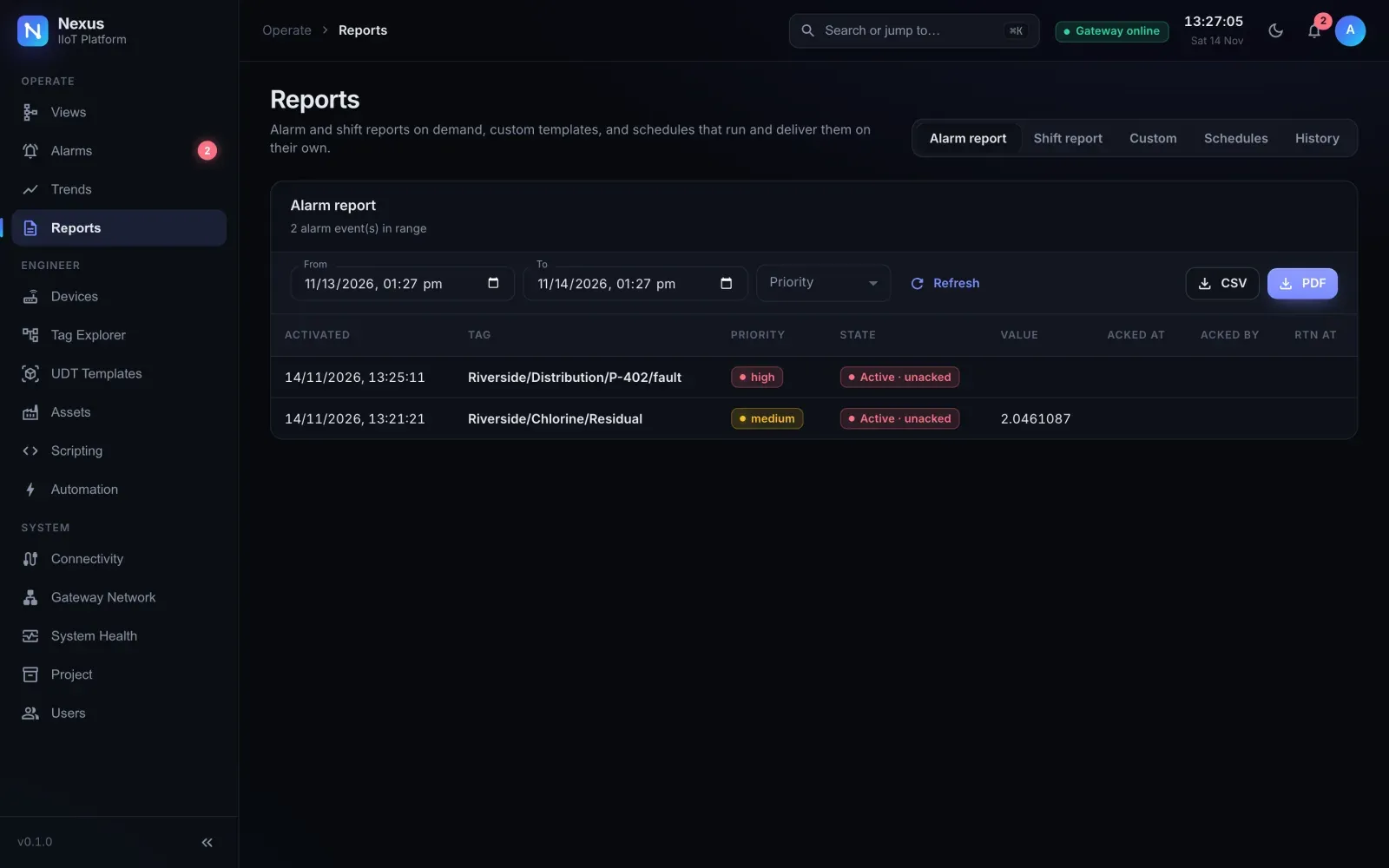
Open Reports for the built-in reports, your own report templates, schedules, and the history of every run.
| Tab | For |
|---|---|
| Alarm report | Alarms for a period, on screen, as PDF or as CSV |
| Shift report | A PDF summary of a shift |
| Custom | Your own report templates, built from blocks |
| Schedules | Reports that run on their own |
| History | Every scheduled run, with its file |
Custom reports
A custom report template is a list of blocks:
- Titles and text.
- Alarm tables.
- Summary statistics of tags (average, minimum, maximum and more).
- The top alarming tags.
- Device connectivity.
- Trend charts.
- Page breaks.
Generate a template as a PDF for any period, or schedule it.
Schedules
Engineers can schedule any report under Reports → Schedules.
When
- Weekly: on chosen days at one or more times, for example Mon-Fri at 06:00, 14:00 and 22:00 for shift changes.
- Monthly: on a day of the month, or the last day.
- Cron: a cron expression, such as
0 6,14,22 * * *for every shift change. See Cron expressions.
Times are in the schedule’s time zone, so 06:00 stays 06:00 across daylight saving. A time that doesn’t exist on the spring-forward day runs an hour later; one that happens twice on the fall-back day runs once.
Covering
- Since the previous run, which suits shift reports.
- The last N hours.
- The previous day, week (Monday to Sunday) or month in the schedule’s time zone.
The editor shows the next three runs and the exact period the next one covers.
Deliver to
Any mix of:
- Email: people (their account address) and other addresses, with the file attached and a link to the report history. Needs a mail server (see Connectivity → Email).
- A folder on the gateway, often a network share (
\\fileserver\reportsor a mounted/mnt/reports). Files are named<schedule>_<date>[_<time>].pdfand never overwritten. They are written under a temporary name and renamed, so nothing picks up a half-written file. - An HTTP upload: the file is POSTed with its name and period in headers, and an optional
Authorizationheader, for a document management system or a flow.
Folder permissions. The gateway’s service account must be able to write to the folder:
nexuson Linux,NT SERVICE\nexuson Windows for a local folder. On a network share, a Windows service acts as the gateway computer’s account (DOMAIN\GATEWAY01$): grant that, and use the UNC path, because services don’t see mapped drive letters.
Run now
Run now runs a schedule immediately and delivers it, covering the period as if it were due now. Turning a schedule off keeps it for Run now only.
History
Reports → History lists every run: the period, who or what started it, whether every delivery worked (the tooltip says why one didn’t), and the file to download while it is kept. Keep files sets how long (90 days by default; 0 delivers without keeping). Resend delivers a kept file again to the schedule’s current deliveries, for example after fixing an email setting.
Exactly once
Only the active gateway runs schedules, and each run is claimed in the database, so a restart, a failover or both gateways of a pair can’t run it twice. A run missed while no gateway was running is made up once on start, if it is less than 24 hours old. Changing a schedule never runs it for times that have already passed.