Connect and model
Tags
Organise live data in Tag Explorer - the five tag types, data types, scaling, history, write access, tag providers, CSV import and export, and copying.
A tag is a named value with a quality and a timestamp. Everything in Nexus works with tags: screens show them, alarms watch them, the historian records them, scripts read and write them, and integrations publish them.
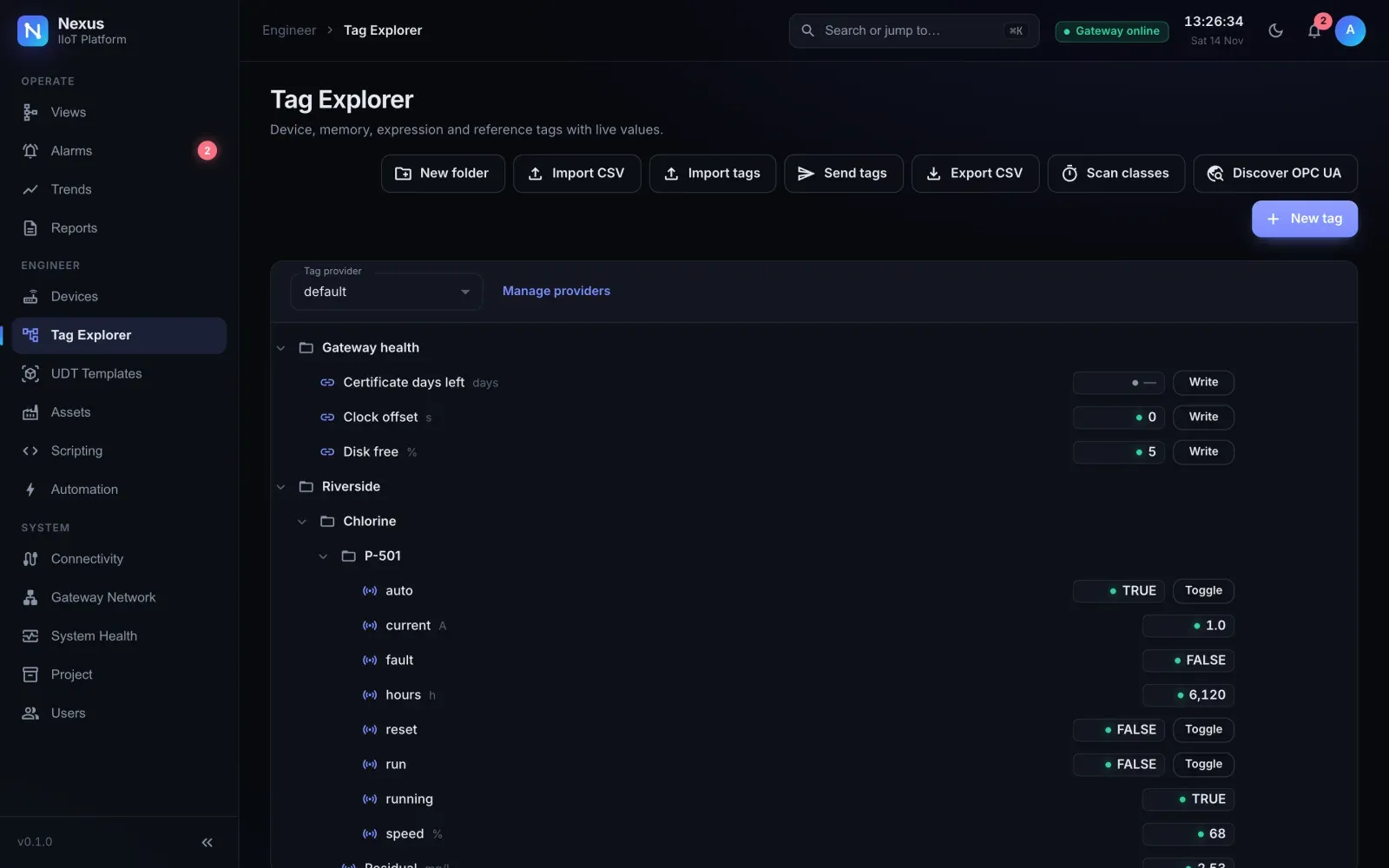
Open Tag Explorer to see the tag tree. Select a folder to see its tags with live values, quality and diagnostics. Engineers can create, edit, move and delete folders and tags; everyone else can browse and, with the Operate permission, write values.
Tag IDs and paths
Each tag has two names:
- The path is where it sits in the tree, for example
Plant/Tank101/Level. Moving or renaming a tag changes its path. - The Tag ID is how expressions, scripts and screens refer to it, for example
plant.tank101.level. It is suggested from the folder and name in lower case when you create the tag, and can’t change afterwards, so references never break.
In expressions, a reference to a tag is its ID in braces: {plant.tank101.level}.
Tag types
| Type | Value comes from | Writable |
|---|---|---|
| Device | A device, at an address (see Devices) | Yes, if the address is writable |
| Memory | Held by the gateway and kept across restarts: setpoints, flags, recipe values | Yes |
| Expression | Computed from other tags with the expression language | No |
| Reference | Mirrors another tag (the Source tag); writes go through to it | Yes, through to the source |
| Query | A SQL query on one of the SQL bridge’s database connections, run every interval | No |
Device tags
Choose the Device, then fill in the address fields for its protocol. The Scan class sets how often a polled device reads it (see Scan classes).
Memory tags
Set an Initial value. It only applies when the tag is created; after that the tag keeps whatever was last written, across restarts. A project import never overwrites the value of an existing memory tag, so setpoints operators changed are safe.
Expression tags
Write the Expression, for example {line1.motor.current} > 40 && {line1.running}. Insert tag reference picks tag IDs for you. The editor checks the expression as you type and the tag shows a diagnostic if a referenced tag doesn’t exist.
Reference tags
A reference tag gives another tag a second name and place, for example to present a PLC’s raw tag under a tidier path, or to alarm on a system tag such as _system.gateway.heapUsedPercent.
Query tags
A query tag runs SQL against a database connection from Connectivity → SQL bridge, Every (ms) milliseconds (at least one second), and takes the first column of the first row as its value: a count of open work orders, a runtime total, a recipe value.
- Each run is a read-only transaction with a statement timeout, so a query tag can’t change data.
- An error, no rows or
NULLmakes the tag bad quality. - Query tags only run on the active gateway of a redundant pair.
Data types
| Data type | Values |
|---|---|
number | Floating-point numbers |
boolean | true / false |
string | Text |
int8, int16, int32, int64, float32 | Sized numbers |
datetime | A point in time |
Arrays: boolean[], int16[], number[], string[] and the others | Several values; device tags set a Count |
document | Any JSON object or array |
dataset | A table of columns and rows |
Open a tag’s value to see arrays, documents and datasets in full. Alarm rules on an array tag can watch one element.
Display settings
| Setting | Use |
|---|---|
| Units | Engineering units, shown with the value: °C, bar, % |
| Eng. low / Eng. high | The expected range: trends and bars scale to it, and OPC UA clients see it |
| Format | How the number shows: #,##0.00, 0.0 or 0% |
| Tooltip | A short hint operators see on hover |
| Documentation | Longer notes for engineers |
Scaling
Device tags can convert the raw PLC value to engineering units. A scale and offset cover the simple case (value = raw × scale + offset). For more, choose a scale mode:
| Mode | Does |
|---|---|
| Range | Maps raw low…high onto scaled low…high: 4-20 mA in counts to 0-10 bar |
| Square root | The same through a square root, for flow from a differential-pressure transmitter |
| Exponential filter | Smooths each reading toward the last: value = last + weight × (raw − last) |
| Bit inversion | Inverts a boolean, or every bit of an integer |
Range and square root can clamp the result to the scaled range at the low end, the high end or both. Writes are unscaled before they go to the PLC.
Deadband
A Deadband ignores changes smaller than its size, so a noisy analog value doesn’t flood screens, history and alarms.
History
Turn on Historize to record a tag’s changes. Every data type can be historized. Booleans chart as steps, and text is kept alongside.
History settings decide which changes are recorded:
| Setting | Effect |
|---|---|
| History deadband | Smaller changes aren’t recorded |
| Min interval (s) | At most one record per interval: the latest value at its end |
| Max interval (s) | At least one record per interval, changed or not, so a flat line isn’t a gap |
| Record: Periodically, Every (s) | The value at this interval, whether it changed or not |
Without settings, every change is recorded. History is shown in Trends, Reports, view charts and the REST API.
Who may write a tag
By default anyone whose role has Operate may write any writable tag. You can narrow that:
- On a folder, choose which roles may write the tags under it, or make them read only. Tags inside inherit it unless they set their own.
- On a tag, set its own write roles.
- On a tag provider, set the default for the whole tree.
Administrators can always write. Expression and query tags are never writable. Every write, from any screen, script, API or OPC UA client, is checked the same way and recorded in the audit log.
Tag providers
A tag provider is a separate tag tree. The main one is called default. Add more under Tag Explorer → Manage providers, for a second site, a test copy or a supplier’s equipment. Paths outside the default tree are written with the provider in brackets: [site2]/Area/Pump.
- Turning a provider off stops all its tags.
- Renaming a provider moves its tags, and views, reports and filters that name it follow.
- Tags from edge gateways appear as read-only providers named after the edge.
Importing and exporting
- Export CSV downloads every tag as a CSV file. Import CSV creates or updates tags from one. The columns include
nodeType,tagType,name,parentPath,provider,deviceName,tagId,dataType,engineeringUnits,engLow,engHigh,format,scale,offset,sourceAddress,scanClass,deadband,expressionandhistory. The easiest way to get the format right is to export a few tags first. - Import tags and Send tags move tag folders, with the UDTs, devices, alarms and scripts they use, to another gateway as a tag package or over the gateway network. See Projects and packages.
Copying tags
A row’s Copy duplicates a folder (everything in it) or a single tag, into another provider or elsewhere in the same one. Choose Into tag provider and Into folder, and optionally give the copies a new ID prefix: Each id starting with line1 Starts with this instead line2.
Tag scripts
A tag can run JavaScript every time its value changes: count starts, copy a value somewhere else, call a web service. Open the tag’s scripts to add one. Tag scripts need the Manage scripts permission; see Scripting.
Linking folders to assets
A folder’s settings can link it to an asset. Its tags then belong to that equipment: they appear on the asset’s page, under the asset model’s topics, and follow users’ asset scopes. A folder inside linked to another asset wins.
System tags
The gateway publishes its own state as read-only tags under _system:
_system.<device>.connectedfor each device._system.gateway.eventLoopLagMs,.heapUsedPercent,.memoryMb,.uptimeSecondsand restart counters for the script worker, driver host and Node-RED._system.gateway.diskFreePercent,.certificateDaysLeft,.clockSkewSecondsand.backupAgeHours, used by the gateway health alarms.
To alarm on one, create a reference tag pointing at it and give that an alarm rule.